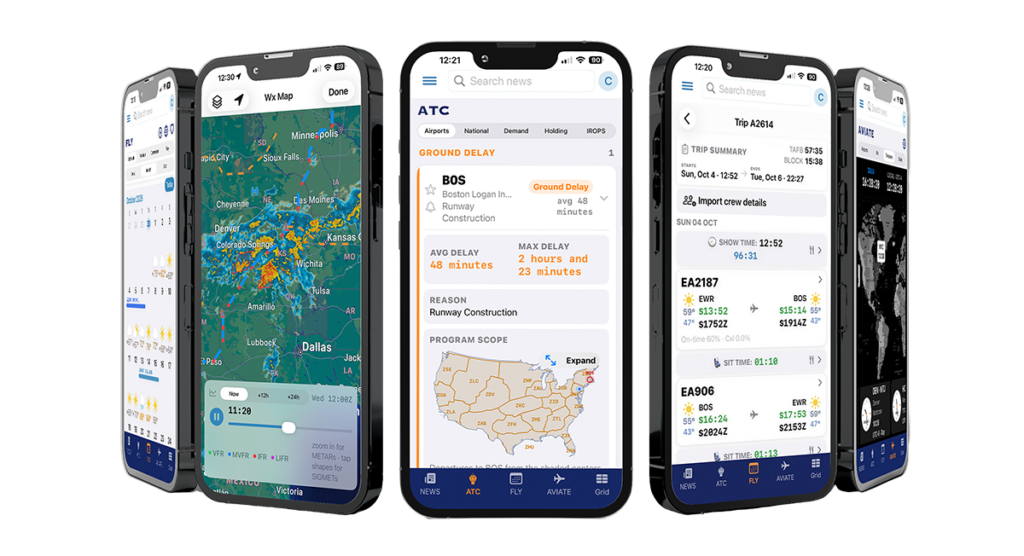






















































Most crewmembers start a trip with about half a dozen opened apps. One holds the schedule, one the weather, another handles the commute, and a webpage for the FAA status that requires an engineer to decode.
The Aero Crew News app brings all of these into one location. The idea is simple — your schedule is the starting point. Import it via a calendar subscription or screenshot, and each trip is connected to its flight information, ATC delays, airport conditions, layover details, commuting options, and an estimated pay picture.
Around that core sits the news, weather, study tools, and The Grid, ACN’s reference for airlines’ contracts and pay scales, which now also includes seniority.
Follow along as this guide walks you through the app layout and its five tabs: News, ATC, FLY, AVIATE, and Grid.




New in 2.1.0 — Start for free
The app originally began with a paid plan, but in version 2.1.0, there’s a free membership option available. Simply download the app and you’re in with no commitment necessary. The free account gives you access to the News tab with all Aero Crew News’ articles, columns, and needless to say, the news. In addition, you can access most of what’s in the ATC tab, the weather tools in AVIATE, and The Grid‘s pay and contract basics. That’s enough to read the news, check what the National Airspace System (NAS) is doing, and consult the weather before you leave the hotel. You can also look up any airline’s pay scale. All this is available without a subscription.
Once you get an idea of how robust this thing can be, you’re ready for the rest. The paid plans are customized to your schedule, with flight tracking, layovers, the commuter finder, plus pay tools, study decks, and push notifications. Upgrades are handled through the App Store, and soon, through the Google Play Store. (Plans and prices are under Getting started at the end of this guide.)
Start with your schedule
Personalization in the app hangs off your schedule, so importing it is the first step. Go to FLY → Schedule, then tap +, and choose Add or import a trip.
There are several ways in, depending on where your schedule lives:
- A calendar subscription: Choose Subscribe to a calendar link and paste the actual calendar-feed link, not your airline’s website address. If the feed is protected, the app asks for your crew credentials. Some airlines provide a CAL subscription with a separate password; make sure your password is different from your main login.
- A calendar already on your phone: Pick it and the app reads the trips.
- A schedule file: Import a compatible export.
- A screenshot: The app extracts the flights, and you review them before saving.
- FLICA: A guided export walks you through this.
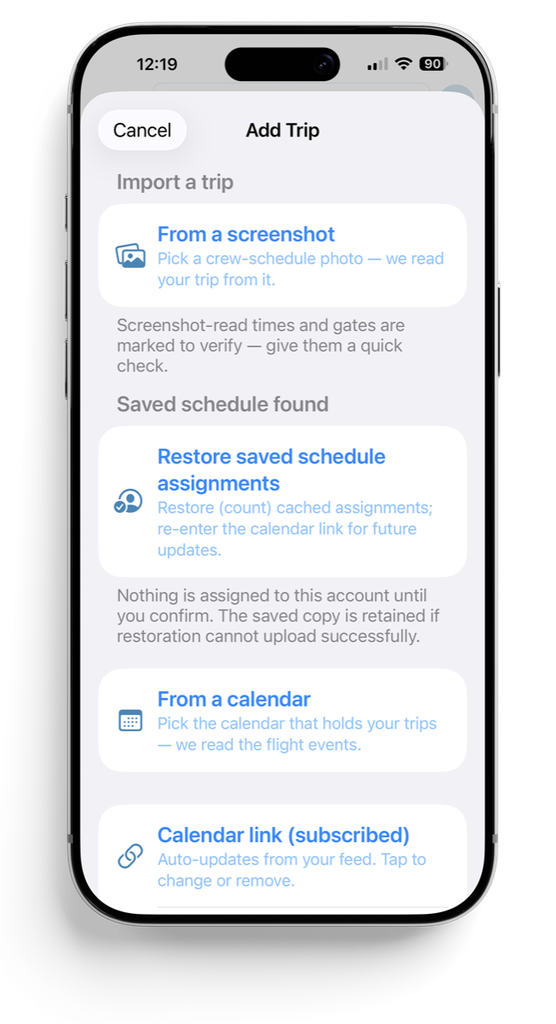
One distinction matters. A subscription can refresh from its source as your schedule changes. A file or screenshot is a snapshot; it won’t update without intervention on your part.
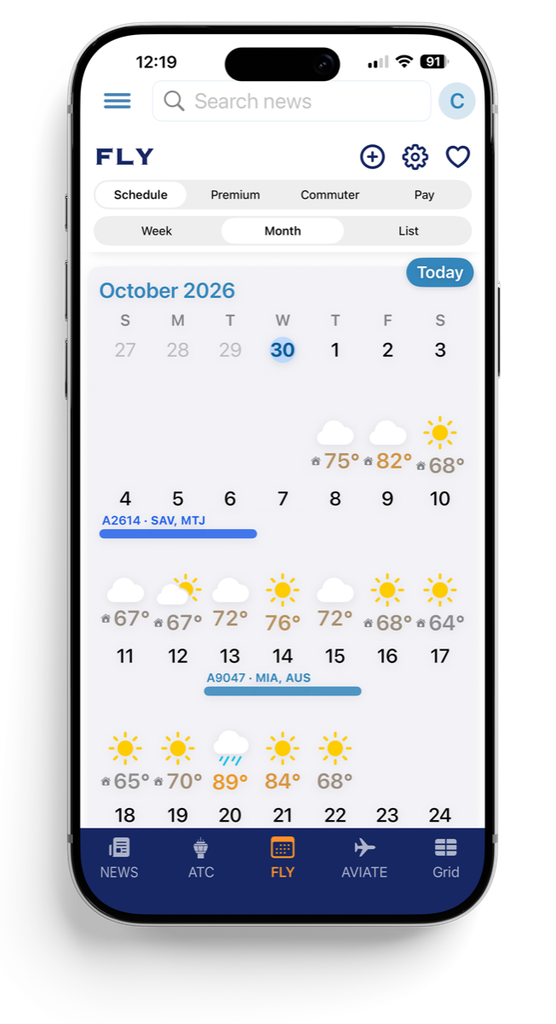
Once imported, trips appear in Week, Month, or List view. If a trip doesn’t import correctly, tap Report a schedule issue on the import screen to let us know. You can also edit, remove, or restore individual activities. Your reserve and non-flying days are clearly marked.
There’s a family option too. For those who ask, “When are you home?” you can share a read-only calendar. From the same + menu, select Share calendar with family. You control each viewer’s access, and which details they see. You can allow someone to tap on the event and there will appear a link to check your flight status. Calendar events also update to show the flight status.
Your trip, leg by leg
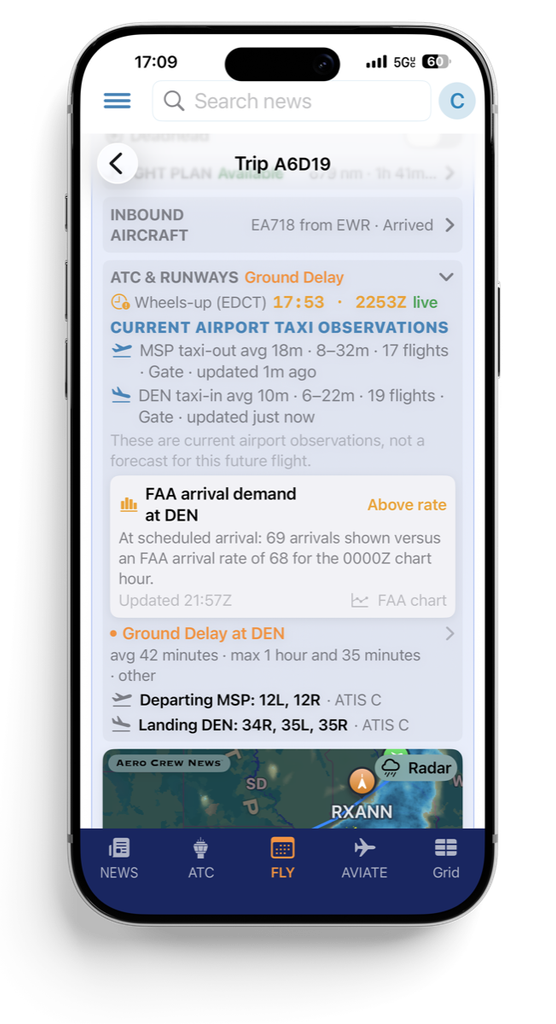
Open a trip and the schedule becomes the organizing point for the rest of the day. Expand a day, then an individual flight, and you’ll find what’s available for it: show or report time, the legs, gates, company-filed route, weather, and all ATC information for the airports involved. ATC information includes ground delay programs, ground stops, EDCTs, en route restrictions, and even departure fix restrictions.
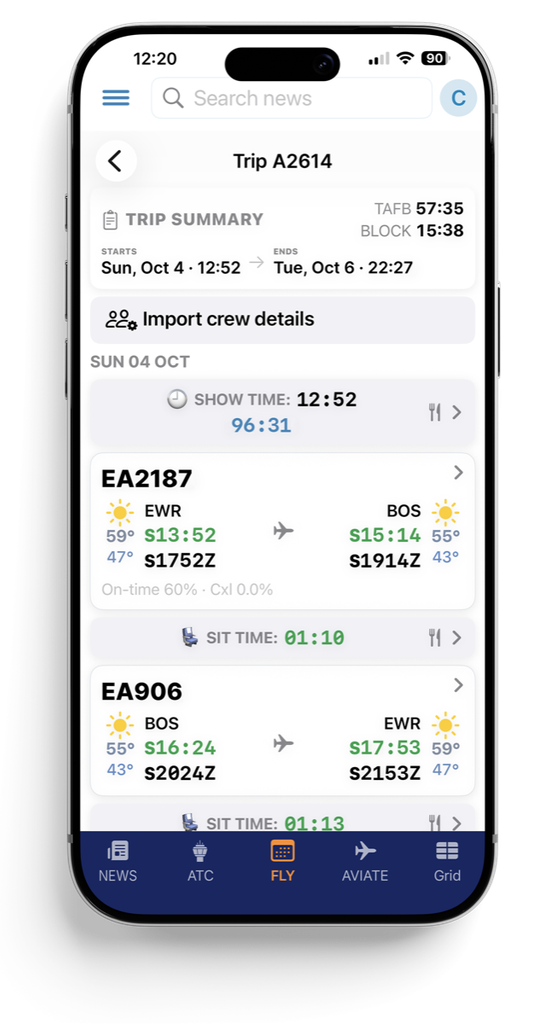
One very useful section is Inbound aircraft. This shows the flight bringing your airplane in, which is usually the first place a late departure starts. Scheduled times sit alongside live updates where they exist.
A word of caution the app itself would give you: scheduled is not actual. And if live information isn’t showing, that doesn’t mean the flight is on time.
Aircraft Trace goes a step further. From Inbound aircraft, tap Trace aircraft to explore that airplane’s rotation and available flight history beyond the immediate inbound leg. It’s a way to see where disruption may be building earlier in the day. (Aircraft Trace is part of the Max plan.)
If you wear an Apple Watch, the companion app puts the essentials on your wrist. Open Aero Crew News on your iPhone to sync a trip, and the Watch shows flight, report or show time, van, and ATC information where available.
What the system is doing: ATC
The ATC tab answers the question every crew asks before leaving the hotel: what is the system doing today? It has five views.
Start with the AI Briefing card at the top of Airports. It gives a one-line national headline and a few bullets on what the system is doing right now. The briefing is built from FAA NAS status, the FAA restrictions page, and airspace flow programs. It refreshes every 30 minutes. Anything unusual leads: closures, ground stops, heavier-than-normal delays. Routine metering gets folded into a single line, and on a quiet day, the card simply states so.
- Airports. Open an airport card and expand any reported program to see the reason, timing, and available scope.
- National. The broader traffic-program picture across the country.
- Demand. Available airport demand information.
- Holding. Where aircraft are holding.
- IROPS. Disruption information.
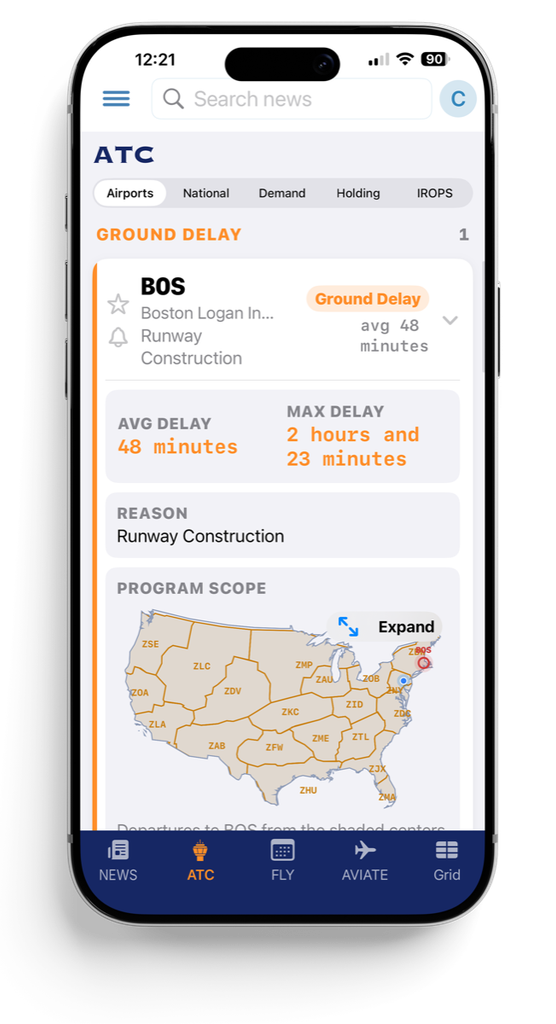
En route restrictions are where the app does the most translating. The FAA publishes them as one long table, often more than 150 rows, sorted by the facility that requested each restriction and written in shorthand like “LANNA 5MINIT 1800-1930 N90:HPN.” The app sorts them by airport instead, with your starred airports first. Each restriction shows the fix in bold, the active window in Zulu, and the reason in plain English: “5 minutes in trail,” “departures stopped,” “departure approval required.” You can view them by category or fold them into each airport’s card, and the original FAA page is one tap away.
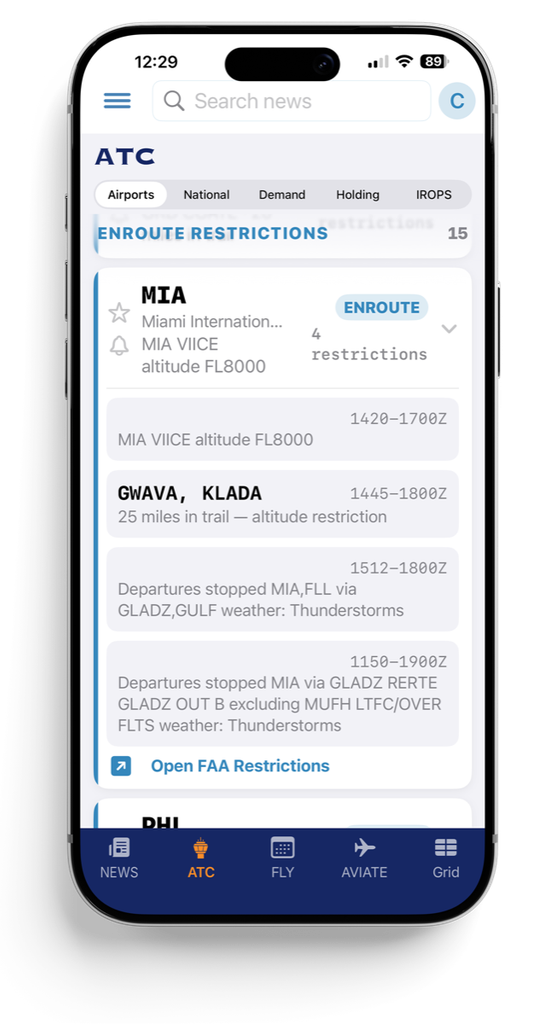
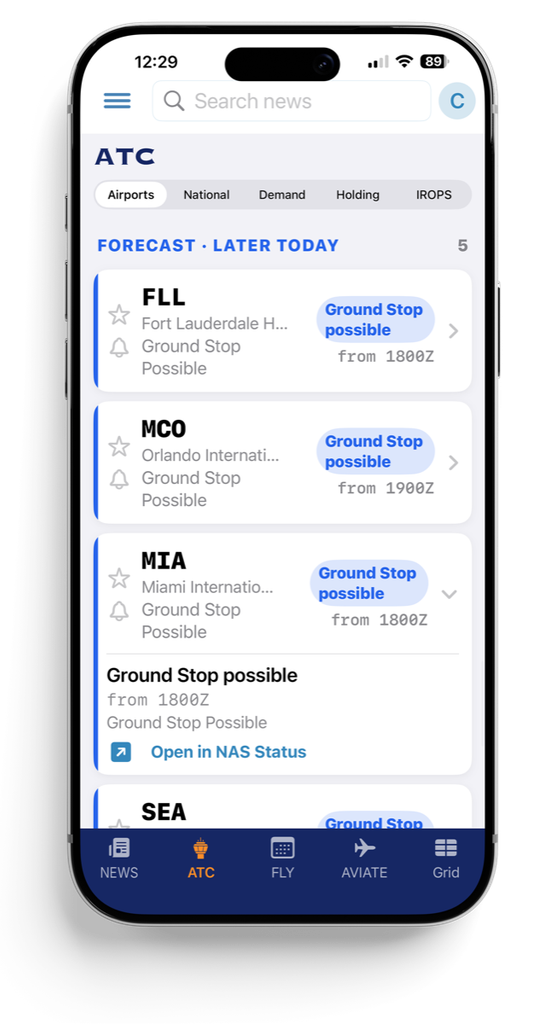
Every airport card has two controls. The star icon makes it a favorite, pinning it to the top of the list. The bell icon turns on push alerts for that airport, and they arrive even when the app is closed. You’ll get a notification when the airport picks up a new ground stop, ground delay program, closure, airspace flow program, or departure or arrival delays. Each alert gives the reason, average delay, and end time. You won’t be alerted twice. You can turn the whole category on or off under Settings → ATC & airport alerts.
Most of the ATC tab is included in the free app but push alerts (every notification available in the app) require a paid plan.
While this contributes to your situational awareness, it is not a crystal ball. Coverage and freshness vary, and the app can’t track every aircraft nor predict delays with certainty. It does put the programs affecting your day in one place, including the reasons.
Making the layover usable
On most schedules, an overnight is just an airport code between two duty days. In the app, it’s a section you can open. Expand an overnight in your trip and you’ll see available hotel details, transportation information, and van pickup times. Below these are nearby places for food, coffee, and things to do, each includes directions.
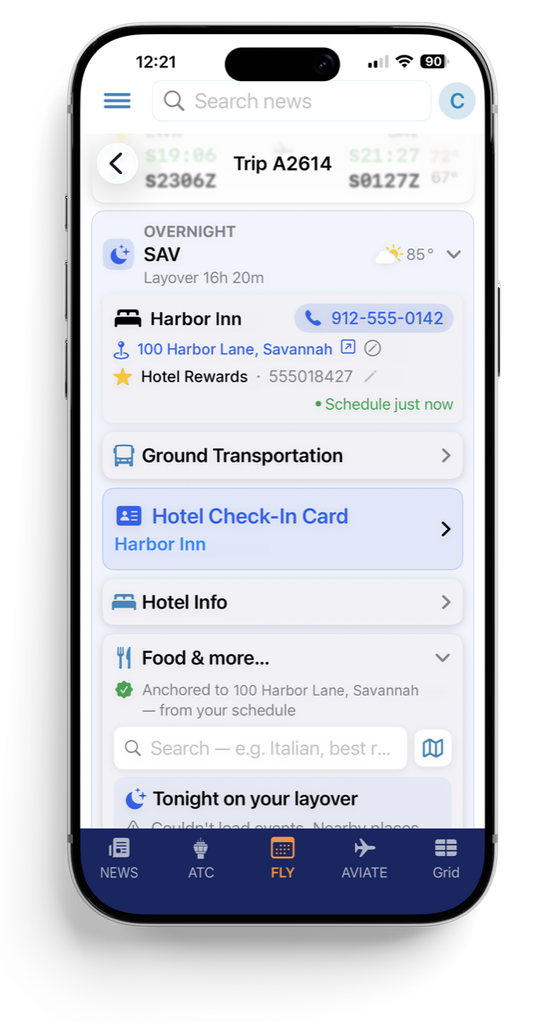
You can tune this to how you actually spend a layover. Layover preferences let you set your interests and search radius so a 14-hour overnight in a new city looks different from a 9-hour one near the field. Save the good spots to favorites and they’ll be there next time the trip comes around. Of course, this information is dependent upon the underlying records. Hotel details can’t all be verified, and a listed business isn’t guaranteed to be open when you get there, but you’ll have the information to call ahead to ensure you’re not wasting your time and effort.
The commute
For commuters, the trip starts well before report time. FLY → Commuter handles that part.
Under Flights, choose Going to work, Going home, or For fun. Set the departure airport, destination, and date, pick the maximum number of segments you’re willing to ride, and tap Search flights. Results include both passenger and cargo flights, since many cargo carriers take jumpseaters (though rules vary by carrier). Expand an itinerary to see the details, save the options you like, and follow airline or Google Flights links for booking information.
The finder also knows your contract. Each result is color-coded by how much cushion it leaves before show time: green is comfortable, yellow is tight, and red is too late. The red line defaults to your airline’s commuter clause, so a red flag means that option wouldn’t meet your contract’s arrive-before-report requirement. Tap the gear icon to read the clause itself, quoted word for word from your contract (or to set your own thresholds). Commuter clauses are being added as contracts are loaded, and not every airline is included at this publication date.
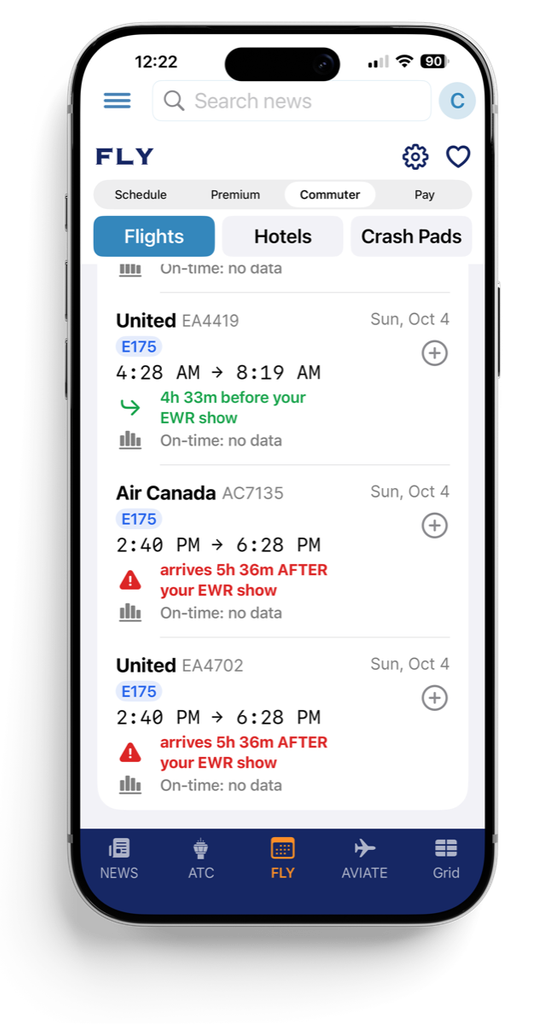
Let’s be clear about what this is not. The finder doesn’t show seat loads or jumpseat availability, and it can’t tell you whether you’ll get on. It helps you map your options; listing and the jumpseat are still on you.
Once you save a commuter flight, the app treats it like a leg of your trip. It shows up in your schedule next to your work flights and is tracked the same way, with live status, delays, gates, and the inbound aircraft. The app keeps checking it against your show time, so if the commute starts slipping, you’ll see it before you’re sitting at the gate.
Next door are Hotels and Crash Pads. Pick your base or destination, open a listing for details and contact or booking links, and save the ones worth keeping. You’ll see listings but these do not confirm a room, a crew rate, or a reservation.
What the month might pay
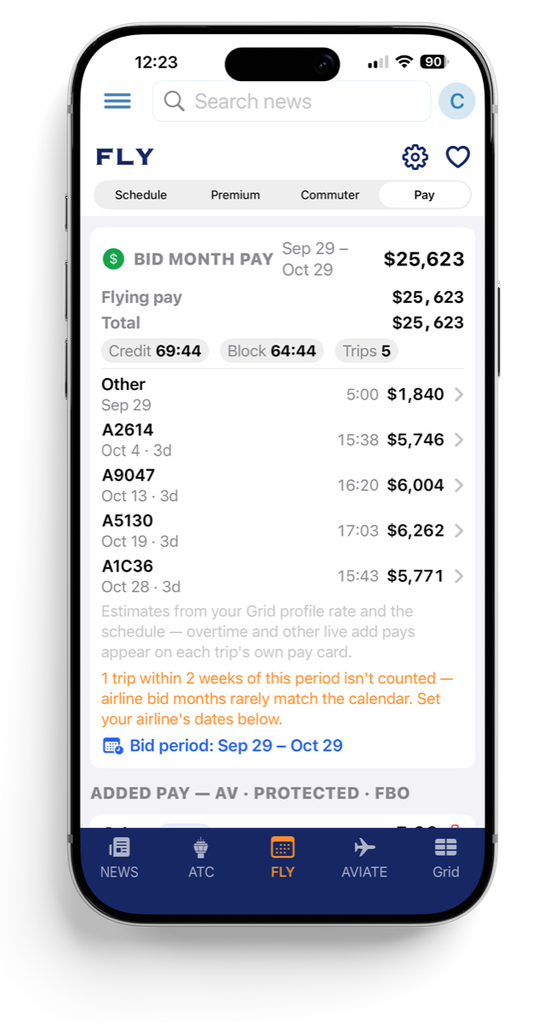
Once your schedule is in, FLY → Pay turns it into an estimated pay picture. You get trip estimates, credit and block summaries, per diem, and supported additional pay items, totaled for the bid period.
To get a useful number, fill in your airline and pay details in Profile first. Then ensure the bid-period dates are right, open a trip’s pay breakdown, and look at the rate and assumptions the algorithm has used. The estimate is built from the flying on your schedule; non-flying activities such as vacation, training, or sick time are worth checking by hand.
Premium, also under FLY, is a conditions-based outlook for your airline and base. It looks at operational disruption and schedule pressures that may be associated with premium-flying opportunities, and a tap on a base shows what’s contributing. It’s an outlook, not a list of confirmed premium trips, and it isn’t connected to your airline’s staffing system. Premium is part of the Max plan.
The longer view lives in Grid → Pay, which is separate from the trip summary under FLY.
- Retirement walks through a wizard for career and contribution scenarios, with tax tools built into the workflow.
- Live meter shows an estimated running pay amount once you set your inputs.
- Compare lays out supported compensation scenarios across multiple airlines.
Together, these tools are a way to plan your future, and they’re most useful for those just starting out. Choosing which airline to go with is always a challenge. Here you can line up pay, retirement contributions, and career progression side by side to see where each path could take you, all before you make that commitment.
The calculator suite is generally part of the Pro plan, and multi-airline comparison is part of Max. Every number here is an illustrative estimate. None of it is a payroll record, financial advice, or a guaranteed outcome. Always check flight and pay information against your airline’s official records.
The news, and a way to ask it questions
The News tab is where Aero Crew News lives in the app. Inside, it holds ACN articles and columns. News carries ACN’s news bulletins and the Daily Briefing, so the day’s aviation news is in the same app as your trip.
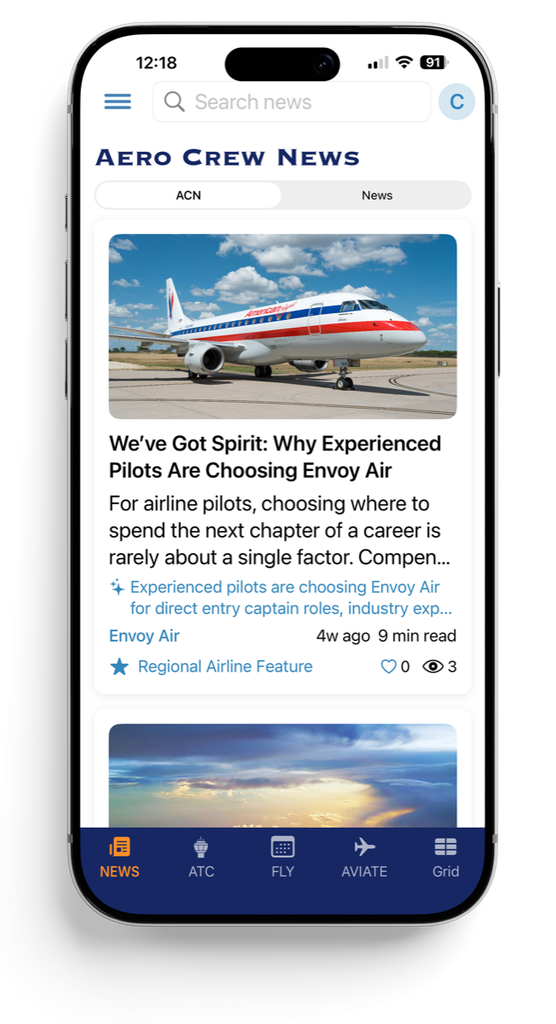
Search across coverage, open the filter icon in News to set your interests, and save articles to read later, perhaps from the jumpseat.
Two tools sit atop the feed. The Daily Briefing appears in News as a condensed overview of the day’s aviation coverage. Behind the speech-bubble icon is Ask the News which gives AI-assisted answers to specific aviation-news questions, with the supporting articles or sources listed so you can check them.
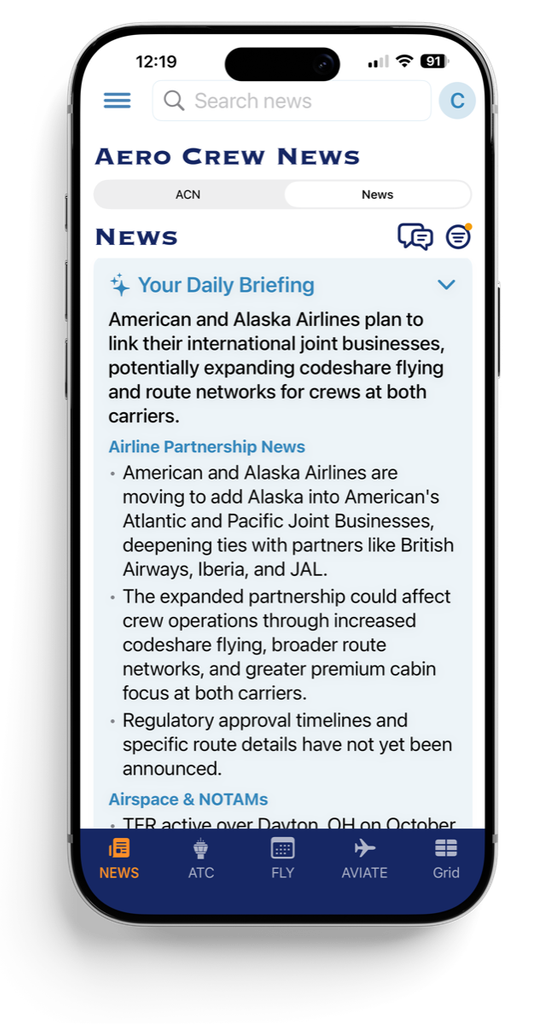
Ask the News is a research tool. It isn’t a source of operational instructions. The number of new questions you can pose and your access to saved answers is dependent upon your plan.
AVIATE: weather, time, and study
Airports is the quick weather check. Search an airport, tap Get Wx, and expand the sections for available METARs, TAFs, D-ATIS, NOTAM information, runway and weather tools. The raw reports are color-coded, so you don’t have to decode every group to see what matters. The flight category (VFR, MVFR, IFR, or LIFR) shows in color at the top, and low ceilings and visibilities are highlighted in the METAR and TAF. The TAF line currently in effect is shaded, and each report shows how old it is. Switch to Decoded for plain English. Save the airports you check most. For the bigger picture, Wx groups weather maps and chart resources.
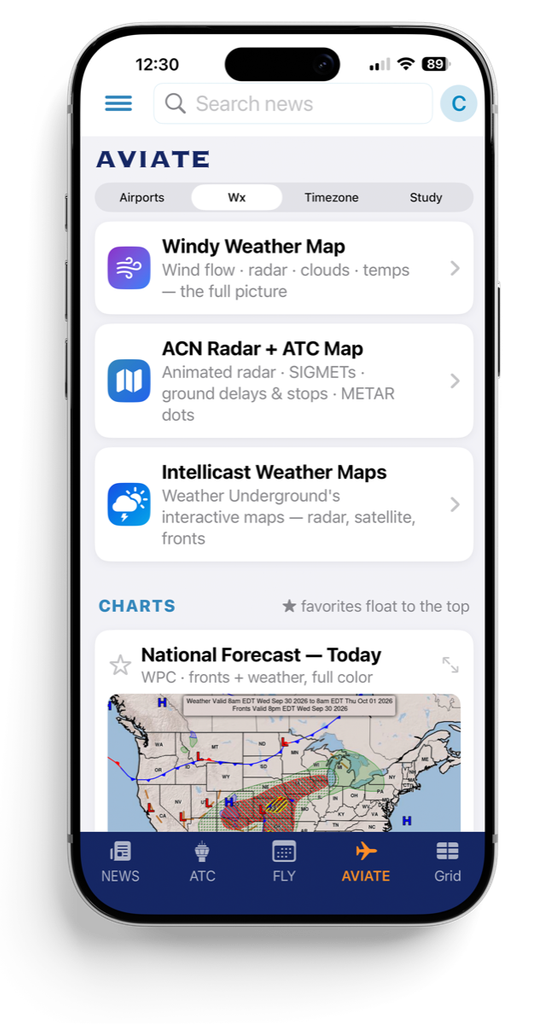
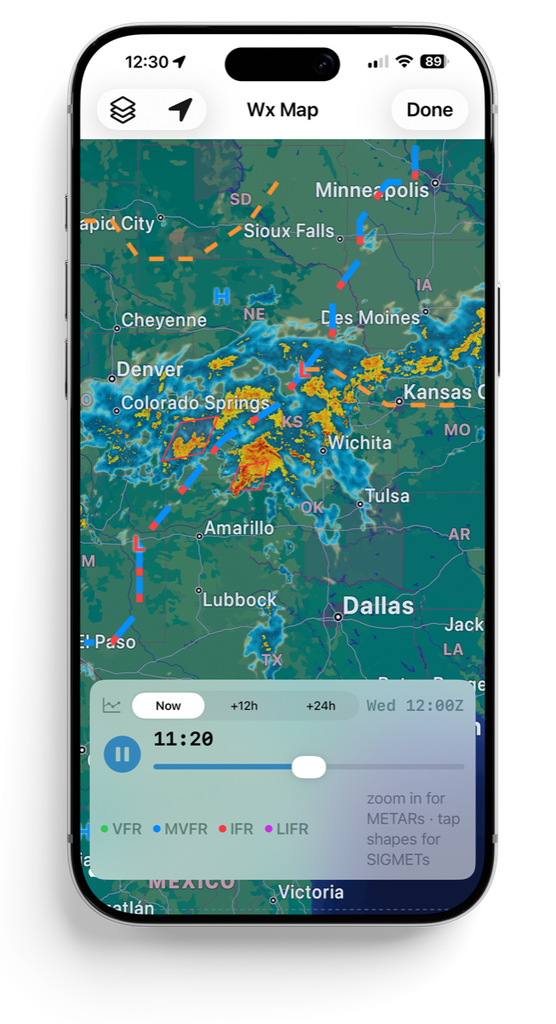
These are situational-awareness tools. They don’t replace official weather briefings, approved navigation products, or your company’s procedures.
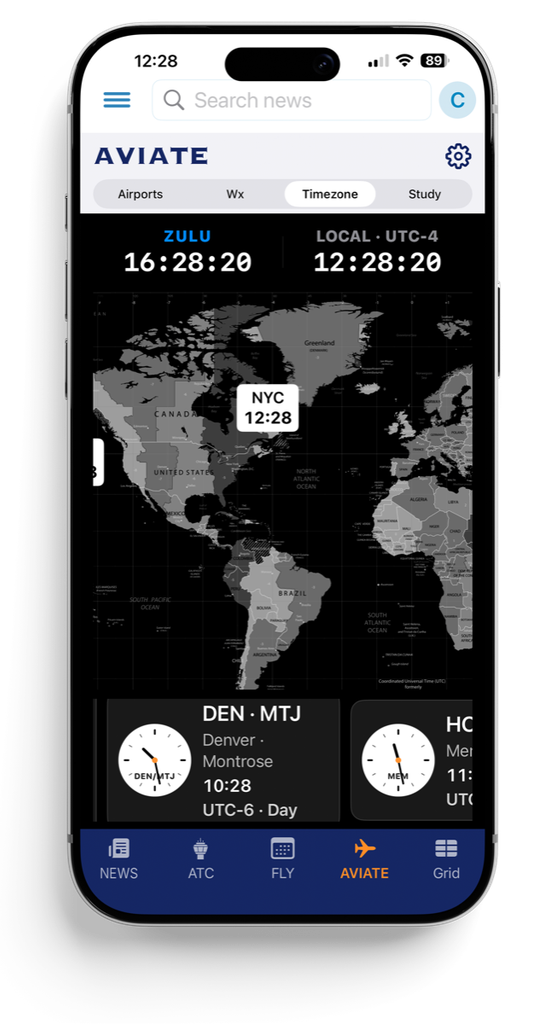
Timezone puts Zulu and local time side by side with a world map, city clocks, and airport-time lookup. The gear icon lets you change the clock style and choose which cities appear. It’s a small feature crews tend to use every trip.
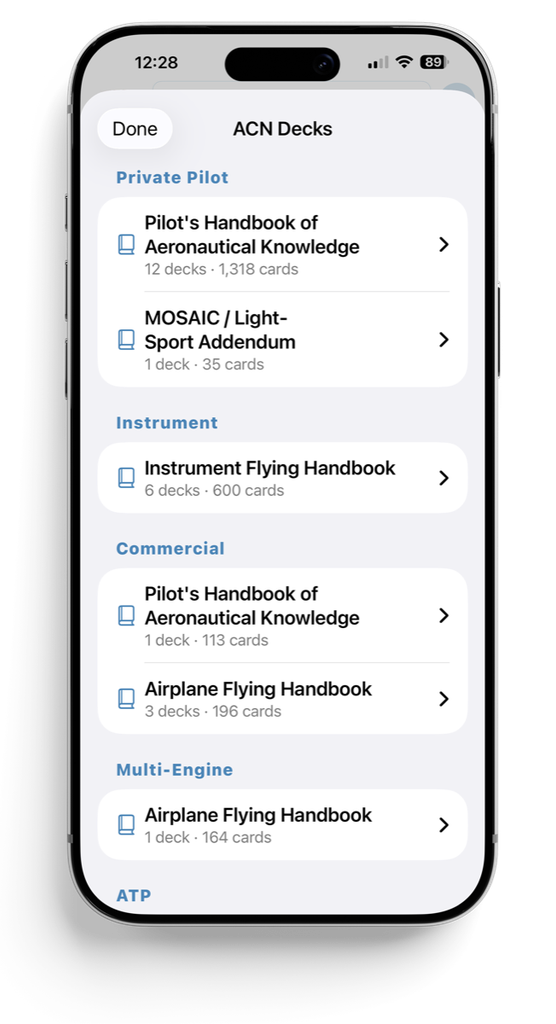
Study is for recurrent, upgrades, and anything else you need to know cold. Start from an ACN starter deck or build your own: paste in material, or import CSV/TSV, Excel, or Anki .apkg files. Tap to reveal each answer, mark it Correct or Missed, and go back through the misses. The app keeps a study history for every card.
The Grid: airlines, contracts, and seniority
ACN readers know the Grid as our reference on airline pay and contracts. In the app Grid becomes a tab of its own, built around your career.
- My Airline starts with your carrier, personalized to your profile.
- Grid lets you browse other airlines. Pick one and expand its pay scales, contract and work-rule information, and hiring details, or line up supported carriers side by side.
- Seniority offers supported tools for your personal standing and progression.
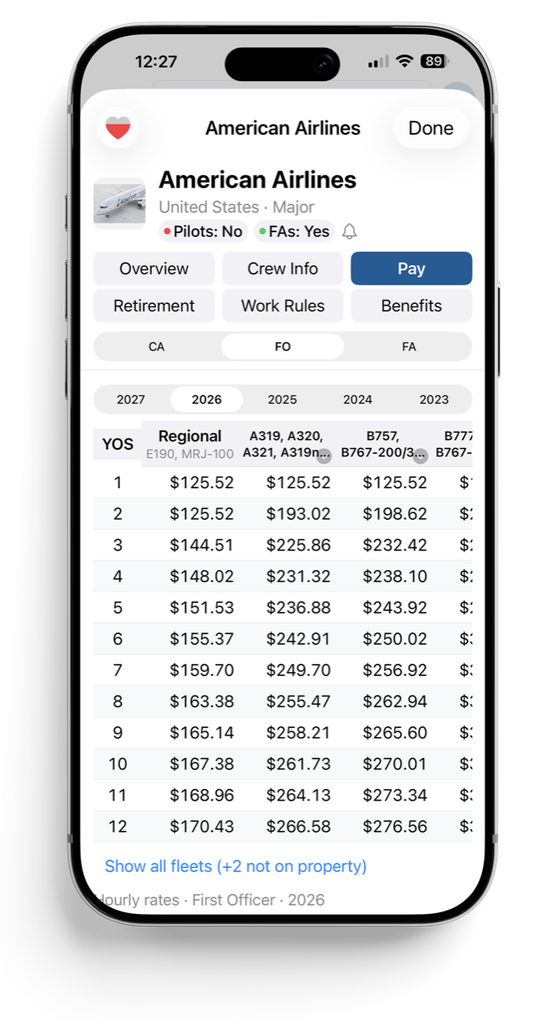
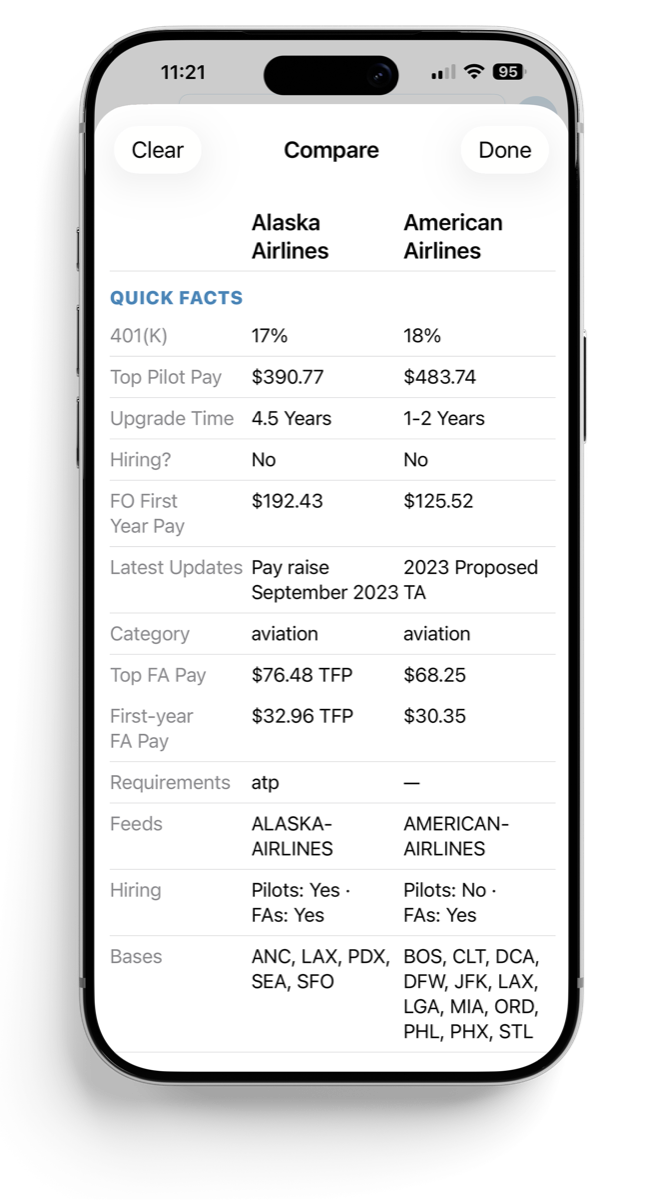
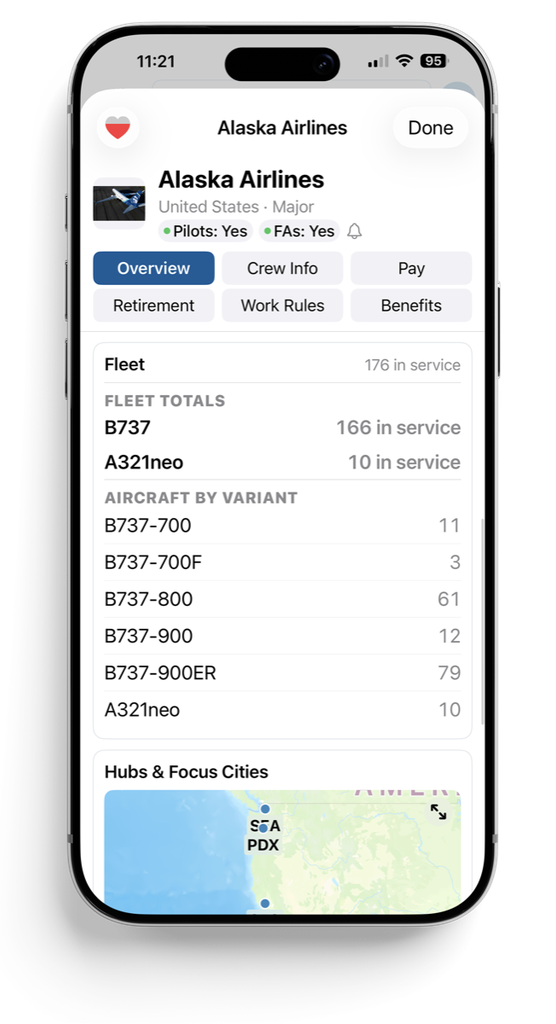
When you’re reading a number, check what it applies to: the seat, the aircraft or pay category, the contract year, and the source date. Coverage varies by airline and workgroup. Seniority projections are estimates, not a promise of an upgrade or a base move. After all, no one can predict when that senior widebody first officer will decide to upgrade to captain on a narrowbody.
Getting started
Five minutes of setup makes everything mentioned above work for you.
- Tap the account button in the upper right, then Profile.
- Set your airline, crew role, base, aircraft or pay category, and employment details.
- Set your home airport so commuting and travel information fits your life.
- Open the upper-left menu, then Settings, to choose notification categories and review your subscription.
- Import your schedule under FLY → Schedule.
Pilots, flight attendants, and travelers see controls suited to their profile, so your screens will likely differ from a colleague’s. Received alerts are under the account button → Notifications.
The upper-left menu also holds the Store and Got a story?, which sends a tip straight to the ACN newsroom. We read every one.
Plenty of the app’s features are free. A free membership includes the News tab, most of the ATC tab, AVIATE‘s weather tools, and The Grid‘s pay and contract basics, with no subscription. All other features, including all push notifications, are available within the three paid plans, each with a 7-day free trial, and you can cancel anytime in your App Store settings.
| Plan | Monthly | Annually | What is included |
| Free | $0 | $0 | The News tab, most of the ATC tab, AVIATE weather tools, and The Gridpay and contract basics. No push notifications. |
| Plus | $5.99 | $59.99 | Live ATC status, trip management with unlimited history, calendar sync, push alerts, and a monthly AI allowance |
| Pro | $9.99 | $99.99 | Everything in Plus, adding multi-leg day tools, live flight intelligence (inbound aircraft, gates, route map, and the commuter finder), and a greater AI allowance |
| Max | $19.99 | $199.99 | All features are unlimited, including the highest AI limits and best model, with priority data refresh. |
Prices are for aerocrewnews.com/the-app as of November 2026.
We built this app for the people who read this magazine: crews who want the big picture of the schedule for that day, from the news to the van time to the paycheck, in one place. Download it at aerocrewnews.com/the-app, import a trip, and tell us what you’d change. The app is currently available for iPhone. (Android coming soon, currently testing.)
Where to find what
Aero Crew News App Feature and Plan Guide
November 2026 | iPhone crew account guide
Each chart shows the features first included in that plan and where to find them. Paid plans also include the features on the preceding pages. Availability depends on crew role, published airline data, airport coverage, and enabled services.
Free
Signed-in Free members can use these screens. (Paid features remain visible in their usual tabs with an upgrade suggestion.)
| Feature | Where to find it |
| ACN articles and columns | NEWS → ACN |
| ACN news and partner story previews | NEWS → News |
| Article search and ACN column filters | Top search; NEWS → Columns filter |
| Saved articles | NEWS → Saved Articles |
| Article likes and comments | NEWS → open an eligible article |
| Public airport delays and restrictions | ATC → Airports |
| National FAA traffic map and runway visibility | ATC → National |
| Public airport demand | ATC → Demand |
| Airport weather, METAR, TAF, D-ATIS and NOTAMs | AVIATE → Airports |
| Radar and weather charts | AVIATE → Wx |
| World time zones and home or selected clocks | AVIATE → Timezone |
| Airline directory, search and filters | Grid → Grid |
| Published airline profile basics* | Grid → Grid → select an airline; Overview, Crew Info, Pay, Retirement, Work Rules and Benefits where published |
| Aero Crew Shop | Top-left menu → Store, when the Store switch is on |
| Socials, settings, about and story tips | Top-left menu → ACN Socials, Settings, About or Got a story? |
| Profile and plan management | Profile icon; Settings → Plans and restore purchases |
* Published airline pay or retirement figures can be incomplete or inaccurate. Verify current airline and contract records, and seek qualified pay or financial advice before making decisions.
Plus ($5.99/month or $59.99 annually)
Plus includes everything in Free. These are the additional Plus membership features.
| Feature | Where to find it |
| Daily Briefing | NEWS → Your Daily Briefing |
| Previously saved answers from Ask the News | NEWS → Ask the News |
| Breaking news alerts and story follows | NEWS → article and notification controls |
| ATC AI Briefing | ATC → Airports → ATC AI Briefing |
| Favorite airports and airport watchlist | ATC → Airports → star or Starred Airports |
| FAA airport program alerts | ATC → Airports → airport card → bell |
| Per-flight EDCT list | ATC → National → EDCTs |
| Current airport taxi times | ATC → National → Taxi Times |
| Live holding map and holding aircraft | ATC → Holding |
| IROPS disruption detail | ATC → IROPS |
| Study decks, flashcards and imports | AVIATE → Study; CSV, Excel and Anki import inside Study |
| My Airline personalized view | Grid → My Airline |
| Favorite airlines and hiring alerts | Grid → Grid → airline card favorite; airline detail → hiring bell |
Pro ($9.99/month or $99.99 annually)
Pro includes everything within Free and Plus. Crew schedule, personal pay and career tools begin here.
| Feature | Where to find it |
| Ask the News new questions | NEWS → Ask the News; 30 new questions per month |
| Crew schedule and trip import | FLY → Schedule → Week, Month or List; + to add or import |
| Trip and flight-leg details | FLY → Schedule → open a trip or leg; live times, status, gates and flight plan when available |
| Trip alerts and calendar integration | FLY → Schedule → Gear icon |
| Family calendar sharing | FLY → Schedule → + → Share calendar with family |
| Layover hotels, vans and nearby places | FLY → Schedule → expand an overnight or layover |
| Commuter and travel flight finder | FLY → Commuter or Travel |
| Saved flights, crew hotels and crash pads | FLY → Commuter or Travel |
| Inbound aircraft, gates and route maps | FLY → Schedule → open a leg → Inbound Aircraft or map |
| Trip pay, credit, per diem and protections* | FLY → Pay; expand a trip -or- FLY → Schedule → open a leg → scroll to the bottom of the trip |
| Bid-period pay totals and PTC or LPV comparison* | FLY → Pay → estimated total and trip rows, where applicable |
| Seniority tracker and projections* | Grid → Seniority; where available |
| Personal pay tools and Live Pay Meter* | Grid → Pay |
| Retirement projection and current-state tax estimate* | Grid → Pay → Retirement or Taxes |
| Your contract in plain language* | Grid → My Airline → contract card; FLY → trip → Contract help, where available |
* Seniority tracking and plain-language contract help are available only where supporting data exists. Pay and tax figures are estimates and may be inaccurate or out of date. Verify current contracts and records, and seek qualified pay, financial or tax advice before making decisions.
Max ($19.99/month or $199.99 annually)
Max includes everything within Free, Plus and Pro and these additional Max features.
| Feature | Where to find it |
| Ask the News expanded question allowance | NEWS → Ask the News; 100 new questions per month |
| Premium Pay Conditions Outlook* | FLY → Premium; crew-base outlook for the next 6, 6–24 or 24–72 hours |
| Aircraft Trace and earlier rotation | FLY → Schedule → leg → Inbound Aircraft → Trace aircraft |
| Changed-trip contract analysis* | FLY → Schedule → modified trip → Contract help |
| Multi-airline comparison* | Grid → Grid → select Compare on airline cards → Compare |
| Career and retirement outcome comparison* | Grid → Grid → Compare; or Grid → Pay → Retirement → Compare |
| Future contract rates where published* | Grid → Grid → Compare → Future contract rates |
| State-to-state tax comparison* | Grid → Pay → Taxes → compare states |
| Multi-airline what-if modeling* | Grid → Grid → Compare → assumptions and scenarios |
*Premium flying outlooks do not promise an offer or a pay amount. Contract, retirement, pay, and tax comparisons may be incomplete or inaccurate. Verify current agreements and records, and consult qualified pay, financial or tax professionals before making decisions.